WhatsApp API Setup Failed? What Could Be Wrong?

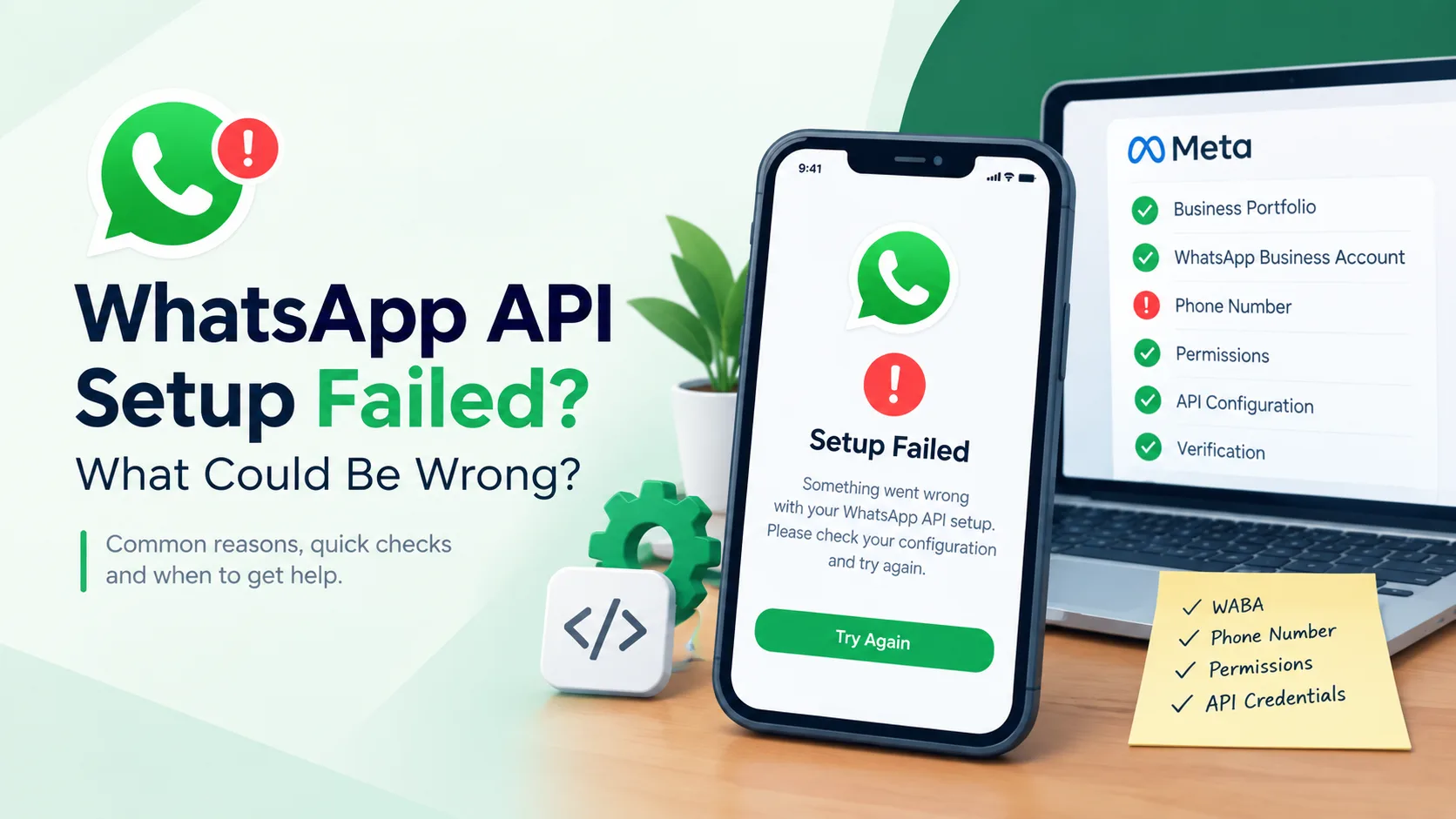
Trying to complete a WhatsApp API setup but something is not working?
A setup can fail for several reasons. The problem may be related to your business account, WhatsApp Business Account (WABA), phone number, permissions, verification, API credentials, registration process, or the way your assets are connected.
The important thing is not to keep retrying the same step without identifying the actual cause.
For businesses, a failed WhatsApp API setup can delay customer communication, CRM integration, automation, notifications, and other workflows. In some cases, the issue may be simple. In others, the current Meta business structure may need to be reviewed before continuing.
This guide explains the most common reasons a WhatsApp API setup fails, what you can check yourself, when the problem may require provider or platform support, and what to consider if your current Business Manager setup is creating additional complications.
What Is WhatsApp API Setup?
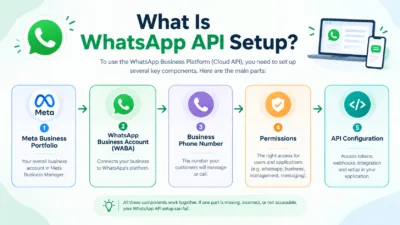
WhatsApp API setup is the process of preparing the business assets, phone number, account access, authentication, and technical connections needed to use the WhatsApp Business Platform.
For Cloud API, the setup can involve assets such as:
- Meta Business Portfolio
- WhatsApp Business Account (WABA)
- Business phone number
- Appropriate permissions
- Access tokens
- Phone number registration
- API or application configuration
- Webhooks or other integrations, when required
Meta’s Cloud API documentation indicates that businesses using the API need a Meta business portfolio, a WhatsApp Business Account, and a business phone number.
That means a failed setup does not necessarily mean the API itself is unavailable.
The problem may be one of the connected assets.
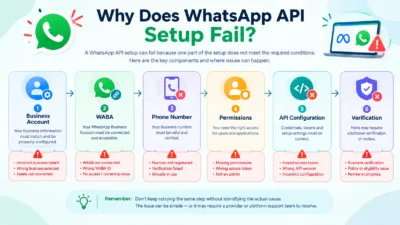
Why Does WhatsApp API Setup Fail?
A WhatsApp API setup can fail because one part of the setup does not meet the required conditions.
For example:
Business information
↓
does not match the account or submitted information
Account structure
↓
WABA is not connected or accessible correctly
Phone number
↓
cannot be registered or verified
Permissions
↓
user or application does not have the required access
API configuration
↓
credentials, tokens, or subscriptions are incorrect
Policy or eligibility issue
↓
the requested setup cannot proceed as expected
The first step is therefore diagnosis.
Do not assume that every failed setup requires a new Business Manager or a new WhatsApp account.
10 Common Reasons WhatsApp API Setup Fails
1. Your Business Assets Are Not Set Up Correctly
One of the first things to check is whether your Meta business environment is properly configured.
Cloud API setup relies on business assets, including a Meta business portfolio and WABA.
If the required asset is missing, incorrectly connected, or inaccessible to the person performing the setup, the process may stop.
Check:
- Is the correct Business Portfolio being used?
- Does the business have a WABA?
- Can the administrator access the WABA?
- Is the correct business selected during setup?
- Are the relevant assets connected to the expected business?
If multiple Meta business accounts exist, make sure you are working inside the correct one.
A surprisingly common source of confusion is simply using the wrong business account.
2. You Do Not Have the Required Permissions
WhatsApp API operations depend on permissions.
Meta’s Cloud API documentation identifies permissions including whatsapp_business_management and whatsapp_business_messaging.
If the user, application, or access token does not have the required permission for the action being attempted, the request may fail.
Before troubleshooting the API itself, check:
- Who is performing the setup?
- Is that person an administrator or has the required access?
- Is the correct application being used?
- Does the access token have the required permission?
- Are you working with the correct business and WABA?
If you are working with a provider, ask them to explain exactly which permissions they need and why.
3. Your WhatsApp Business Account Is Not Correctly Connected
WABA is an important part of the WhatsApp Business Platform setup.
If you have multiple business assets, you may accidentally work with a WABA that is not the one intended for your business.
Meta’s documentation provides methods for identifying WABAs connected to a business and retrieving the WABA ID.
Check:
- WABA ID
- Business Portfolio
- WABA ownership
- User access
- Connected phone numbers
- Application access
If the WABA exists but is not accessible from the account you’re using, review the asset relationship before attempting another setup.
4. Your Phone Number Cannot Be Registered
The business phone number is another major part of WhatsApp API setup.
Meta’s documentation states that a phone number needs to be registered for use with Cloud API and that phone ownership must be verified using SMS or voice verification.
If phone registration fails, check:
- Is the phone number correct?
- Can you receive the verification code?
- Do you control the number?
- Is the verification code entered correctly?
- Is the number already associated with another WhatsApp setup?
- Are you attempting to register the correct phone number ID?
Do not repeatedly request verification codes without checking the underlying account structure.
5. The Phone Number Is Already Being Used Elsewhere
A phone number can create setup problems if it is already associated with another WhatsApp environment or requires migration.
Before starting the setup, determine how the number is currently being used.
Ask:
- Is it connected to WhatsApp Messenger?
- Is it connected to WhatsApp Business?
- Is it already connected to another API setup?
- Is it being migrated from another provider?
- Does the current setup need to be removed or migrated first?
Migration can have additional requirements, so do not assume that an existing number can always be registered immediately.
Meta’s documentation specifically notes that migration from an on-premises API setup to Cloud API can involve additional steps.
6. Two-Step Verification or Registration Is Not Completed
Phone registration for Cloud API includes setting a six-digit registration code and enabling two-step verification. Meta’s current documentation describes two-step verification as part of the Cloud API phone registration process.
If registration fails at this stage, review:
- Registration code
- Phone number ID
- Authentication
- API request
- Account access
- Two-step verification configuration
Keep your registration credentials secure.
Do not share access tokens, passwords, or verification codes with people who do not need them.
7. Your Access Token Is Invalid or Incorrect
Technical setup can fail even when your business assets are configured correctly.
An access token may be:
- Invalid
- Expired
- Generated for the wrong application
- Missing required permissions
- Associated with the wrong business environment
- Used incorrectly
Meta’s documentation includes access-token debugging and distinguishes between user and system-user access tokens.
If an API request returns an authentication or permission error, check the token before changing your entire business setup.
8. Your WABA Is Not Subscribed to the Application
For certain Cloud API workflows, your application needs to be subscribed to the WABA so that notifications can be delivered to the configured webhook endpoint.
Meta’s documentation includes a WABA subscription step for receiving notifications.
If your API can authenticate but expected notifications are not reaching your system, check:
- WABA subscription
- Application configuration
- Webhook URL
- Webhook verification
- Event subscriptions
- Access permissions
This is especially important when the initial setup appears successful but your CRM or automation system does not receive WhatsApp events.
9. Your Business Information Does Not Match
In some setups, inconsistent business information can create additional review or verification issues.
Review the information used across your business environment.
Check whether these details are consistent where applicable:
- Business name
- Website
- Business category
- Contact information
- Business address
- Business documentation
- Meta business information
Do not submit inaccurate information simply to get through the setup.
If documentation is required, use legitimate and accurate business information.
10. Your Intended Messaging Workflow Does Not Meet WhatsApp Requirements
Sometimes the setup itself works, but the intended messaging process creates problems afterward.
WhatsApp Business policies require businesses to obtain appropriate opt-in before contacting people and to respect requests to stop receiving messages. For the WhatsApp Business Platform, business-initiated conversations must use approved message templates, while replies can generally be sent without a template during the applicable 24-hour customer service window.
This means an API setup should not be treated as unrestricted messaging access.
If your business plans to use:
- Promotional messages
- Customer notifications
- Automated replies
- Marketing campaigns
- Lead follow-ups
- Bulk communication
you should understand the applicable messaging rules before launching the workflow.
WhatsApp API Setup Troubleshooting Checklist
Before contacting a provider or changing your business setup, go through this checklist.
Business Account
- ☐ Correct Meta Business Portfolio selected
- ☐ Correct business account selected
- ☐ WABA exists
- ☐ WABA ID confirmed
- ☐ User has appropriate access
- ☐ Business information is accurate
Phone Number
- ☐ Correct phone number
- ☐ Number is under your control
- ☐ Verification code can be received
- ☐ Existing WhatsApp association checked
- ☐ Correct phone number ID selected
- ☐ Registration completed
API Access
- ☐ Correct application selected
- ☐ Access token is valid
- ☐ Required permissions are available
- ☐ WABA is accessible
- ☐ Application is subscribed where required
- ☐ Webhook configuration checked
Compliance
- ☐ Customer opt-in is collected appropriately
- ☐ Opt-out requests are respected
- ☐ Message templates are used where required
- ☐ Intended messaging follows applicable policies
- ☐ Business information is not misleading
Problem vs Possible Cause vs What to Check
| Problem | Possible Cause | What to Check |
| WABA not appearing | Wrong business or access issue | Business Portfolio and permissions |
| Phone registration fails | Number or registration issue | Number ownership and registration status |
| API authentication fails | Token problem | Token validity and permissions |
| Messages cannot be initiated | Template issue | Approved template and messaging rules |
| Webhook does not work | Subscription/configuration issue | WABA subscription and webhook settings |
| Verification is delayed | Business information issue | Submitted information and documentation |
| Existing number cannot be used | Existing WhatsApp/API association | Current number setup and migration requirements |
| Provider cannot complete setup | Account or access issue | Ownership, permissions, and provider process |
How to Troubleshoot WhatsApp API Setup Step by Step
Instead of changing several settings at once, use a structured troubleshooting process.
Step 1: Identify Where the Setup Stops
First determine the exact stage where the problem occurs.
Is it:
- Business account creation?
- WABA creation?
- Phone number verification?
- Phone registration?
- API authentication?
- Webhook setup?
- Message sending?
- Template approval?
The error stage gives you a much narrower troubleshooting path.
Step 2: Record the Exact Error
Do not rely on a description such as:
“WhatsApp API is not working.”
Save the exact error message, code, or screen where possible.
For technical troubleshooting, the exact error can be more useful than a general description.
Step 3: Check the Business Account
Confirm that you are working with the correct Meta business environment.
Check the business name, WABA, users, permissions, and connected assets.
Step 4: Check the Phone Number
Confirm ownership and verification.
If the number is already associated with another WhatsApp setup, investigate that relationship before attempting further registration.
Step 5: Check Permissions and Authentication
Review:
- User access
- Application access
- Access token
- Required permissions
- WABA access
Do not generate multiple credentials randomly. Determine which credential the workflow actually requires.
Step 6: Check API and Webhook Configuration
If authentication works but your application does not receive events, review your WABA subscription and webhook configuration.
Step 7: Check Messaging Requirements
If the setup works but messages fail, determine whether the problem relates to:
- Template approval
- Messaging window
- Recipient opt-in
- Message type
- Account restrictions
- Application configuration
Step 8: Escalate With Evidence
If the problem remains, provide your provider or relevant support channel with useful information.
For example:
- Exact error message
- Error code
- Setup stage
- Business asset involved
- Phone registration status
- WABA information
- What you already checked
Avoid sharing passwords, access tokens, or verification codes.
When a WhatsApp API Setup Problem Is Not an API Problem
This distinction is important.
Sometimes businesses assume:
“The WhatsApp API is broken.”
But the actual issue may be the business environment around it.
For example:
API request fails
→ Check access token
Token is valid
→ Check permissions
Permissions are correct
→ Check WABA access
WABA is correct
→ Check phone number
Phone number is registered
→ Check messaging configuration
This approach helps prevent unnecessary changes.
Example: A Business Cannot Complete Phone Registration
Imagine a business has created its Meta business environment and WABA but cannot complete phone registration.
A poor troubleshooting approach would be to create another business account immediately.
A better approach is:
Problem:
Phone registration fails.
Possible causes:
The number may already be associated with another WhatsApp setup, the verification process may not have completed, or the registration request may be using the wrong phone number ID or credentials.
What to check:
- Number ownership
- Verification method
- Phone number ID
- Existing WhatsApp association
- WABA
- Access permissions
- Registration configuration
Next step:
Identify the specific failure before changing the entire account structure.
This is an example, not a customer case study.
When Should You Consider Reviewing Your Business Manager Setup?
If your WhatsApp API setup is repeatedly affected by problems with business assets, ownership, permissions, or account access, it may be useful to review your overall Meta Business Manager environment.
This does not mean that every failed WhatsApp API setup requires a Verified Business Manager.
However, businesses that rely on multiple Meta assets may benefit from clearly understanding:
- Who owns the business assets
- Who has administrator access
- Which WABA belongs to which business
- Which ad accounts are connected
- Which users have permissions
- Whether business information is consistent
- How the business verification status affects available features
A clean account structure can make business asset management easier to understand and troubleshoot.
Do You Need a Verified Business Manager for WhatsApp API?
Not every WhatsApp API setup should automatically be treated as a Verified BM requirement.
WhatsApp API setup and Business Manager verification are related to the broader Meta business environment, but they are not interchangeable concepts.
If your immediate problem is:
- Phone registration
- API authentication
- WABA access
- Webhook configuration
- Messaging templates
then troubleshoot that specific issue first.
If your broader business setup also involves business verification, advertising assets, account access, or other Meta business requirements, review those needs separately.
This distinction can help prevent businesses from purchasing a solution they do not actually need.
What Should You Check Before Buying a WhatsApp API Solution?
If you are considering buying a WhatsApp API solution because your current setup is difficult to configure, do not choose a provider based only on price.
Ask:
Account Ownership
- Who owns the WABA?
- Who owns the phone number?
- Who controls the business assets?
- Will I receive appropriate access?
Setup
- What does the provider configure?
- What information do I need to provide?
- Who handles phone registration?
- Who handles technical integration?
Integration
- Can it connect with my CRM?
- Are webhooks supported?
- Is API access included?
- What technical documentation is available?
Support
- What support is included?
- Who handles setup errors?
- What happens if the setup cannot be completed?
- Is post-purchase technical support available?
Security
- How are credentials handled?
- Who gets administrative access?
- Can I manage the account independently?
- What happens if I stop using the provider?
Compliance
- Does the solution follow WhatsApp’s current policies?
- How are opt-ins handled?
- How are message templates managed?
- What restrictions should I know about?
A transparent provider should be able to explain these points before payment.
Common Mistakes to Avoid
Creating Multiple Business Accounts Without Diagnosis
Creating another account may not solve the original problem.
First identify whether the issue is related to permissions, WABA, phone number, or technical configuration.
Sharing Login Credentials
Do not give your personal password or sensitive authentication credentials to a provider unless there is a legitimate, secure mechanism designed for access management.
Use appropriate business permissions instead.
Buying Based on Guaranteed Claims
Avoid providers that promise outcomes they cannot control, such as guaranteed approval, guaranteed verification, or guaranteed immunity from platform restrictions.
WhatsApp states that access may be restricted when businesses violate applicable policies or terms.
Ignoring Account Ownership
Before purchasing a setup, understand who controls the relevant business assets.
Using Unapproved Messaging Practices
An API does not remove WhatsApp’s messaging requirements.
Businesses must follow applicable rules around opt-in, message templates, customer service windows, and prohibited behavior.
How to Choose a WhatsApp API Provider
If you decide that you need provider assistance, compare providers using a practical checklist.
| Factor | What to Ask |
| Account ownership | Who owns the business assets? |
| Setup | What exactly is included? |
| Phone number | Can I use my business number? |
| WABA | Which WABA will be used? |
| API | Is API access included? |
| Integration | Can it connect with my CRM? |
| Support | Who handles setup problems? |
| Security | How are credentials handled? |
| Compliance | What messaging rules apply? |
| Migration | Can I move later? |
| Refund | What happens if setup cannot be completed? |
Do not compare providers only by the initial price.
Compare the complete setup and the level of control you will retain.
When Should You Ask for Professional Help?
You can troubleshoot many basic issues yourself.
However, professional or provider support may be useful when:
- You cannot determine which business owns the WABA
- Multiple Meta business environments are involved
- A phone number needs migration
- API authentication continues to fail
- Your application requires custom integration
- Webhooks are not working
- Business permissions are complicated
- Your account has a policy or enforcement issue
When requesting help, provide the exact problem instead of simply saying that the API failed.
This allows the person helping you to investigate the correct layer of the setup.
Frequently Asked Questions
Why did my WhatsApp API setup fail?
A WhatsApp API setup can fail because of incorrect business assets, WABA access, phone number registration, permissions, authentication, application configuration, or policy-related requirements. Identify the exact stage where the setup stops before changing the account structure.
What do I need for WhatsApp API setup?
A Cloud API setup can involve a Meta business portfolio, WhatsApp Business Account, business phone number, appropriate permissions, authentication, and technical configuration. The exact requirements depend on the implementation.
Why is my WhatsApp phone number not registering?
Check whether you control the number, whether verification can be completed, whether the number is already associated with another WhatsApp setup, and whether you are using the correct WABA and phone number ID.
Why does my WhatsApp API access token fail?
The token may be invalid, expired, associated with the wrong application, or missing the permissions required for the requested action. Check the token and permissions before changing your business account.
Do I need a WABA for WhatsApp API?
A WhatsApp Business Account is part of the Cloud API setup. Meta’s documentation identifies a WABA as one of the required business assets for getting started with Cloud API.
Can I use an existing business phone number?
The answer depends on the number’s current WhatsApp/API configuration and the setup or migration path you are using. Check the number’s existing association before attempting registration.
Does a failed WhatsApp API setup mean I need a new Business Manager?
Not necessarily. First determine whether the problem is caused by permissions, WABA access, phone registration, authentication, or another specific configuration issue.
Can a Verified Business Manager fix WhatsApp API setup problems?
A Verified Business Manager should not be treated as a universal fix for WhatsApp API errors. If your problem is technical, such as an invalid token or webhook configuration, verification alone will not resolve that issue.
What should I do if my WhatsApp API provider cannot complete the setup?
Ask for the exact failure point, error message, affected business asset, and proposed solution. Also confirm who owns the WABA, phone number, and other relevant business assets before making further changes.
Is WhatsApp API setup affected by WhatsApp policies?
Yes. Businesses using the WhatsApp Business Platform must comply with applicable WhatsApp Business policies, including requirements around user opt-in, approved templates for business-initiated conversations, and acceptable messaging practices.
Final Takeaway
A failed WhatsApp API setup does not automatically mean that you need a new account, a new phone number, or a different provider.
Start with diagnosis.
Check:
- Business Portfolio
- WABA
- User permissions
- Phone number
- Phone verification
- Registration
- Access token
- API permissions
- WABA subscription
- Webhook configuration
- Message templates
- Customer opt-in
- Applicable WhatsApp policies
Then identify the exact point where the setup fails.
If your technical setup is correct but your wider Meta business environment is difficult to manage, review the structure and ownership of your business assets before purchasing another solution.
If you also need a Verified Business Manager, review the available Verified BM options from Verified BM Store and compare the account details, access, ownership, support, and applicable terms before making a decision.
The goal should be a legitimate, transparent setup that matches your business requirements—not simply a quick workaround for an error.